An Enterprise League company profile is a public page about one business. We build most profiles from public sources, and a company that claims its page can update it. Profiles do not show the date each fact was checked, so confirm the facts that matter at the source before you buy.
In short
- Most profiles are built from public sources. Once a company claims its page, it manages the details.
- Profiles do not show the date each fact was checked.
- Before you buy, check the facts that matter at the source: the official register, the company’s own website and a written quote.
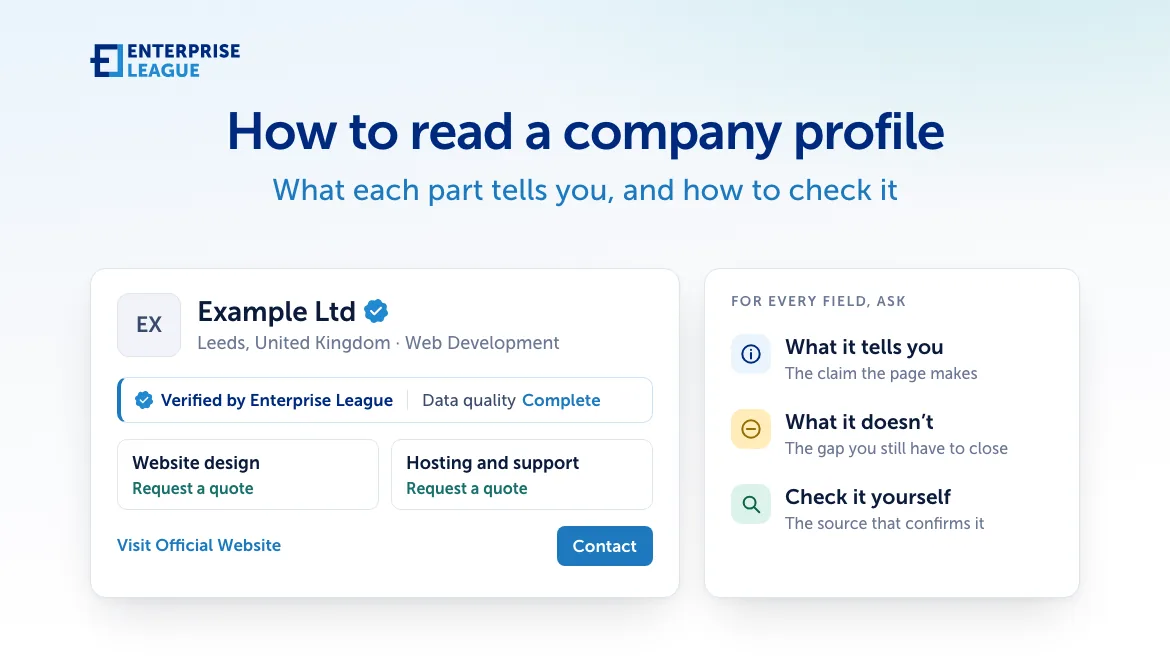
A profile is a starting point for your own checks. Here is what each part tells you.
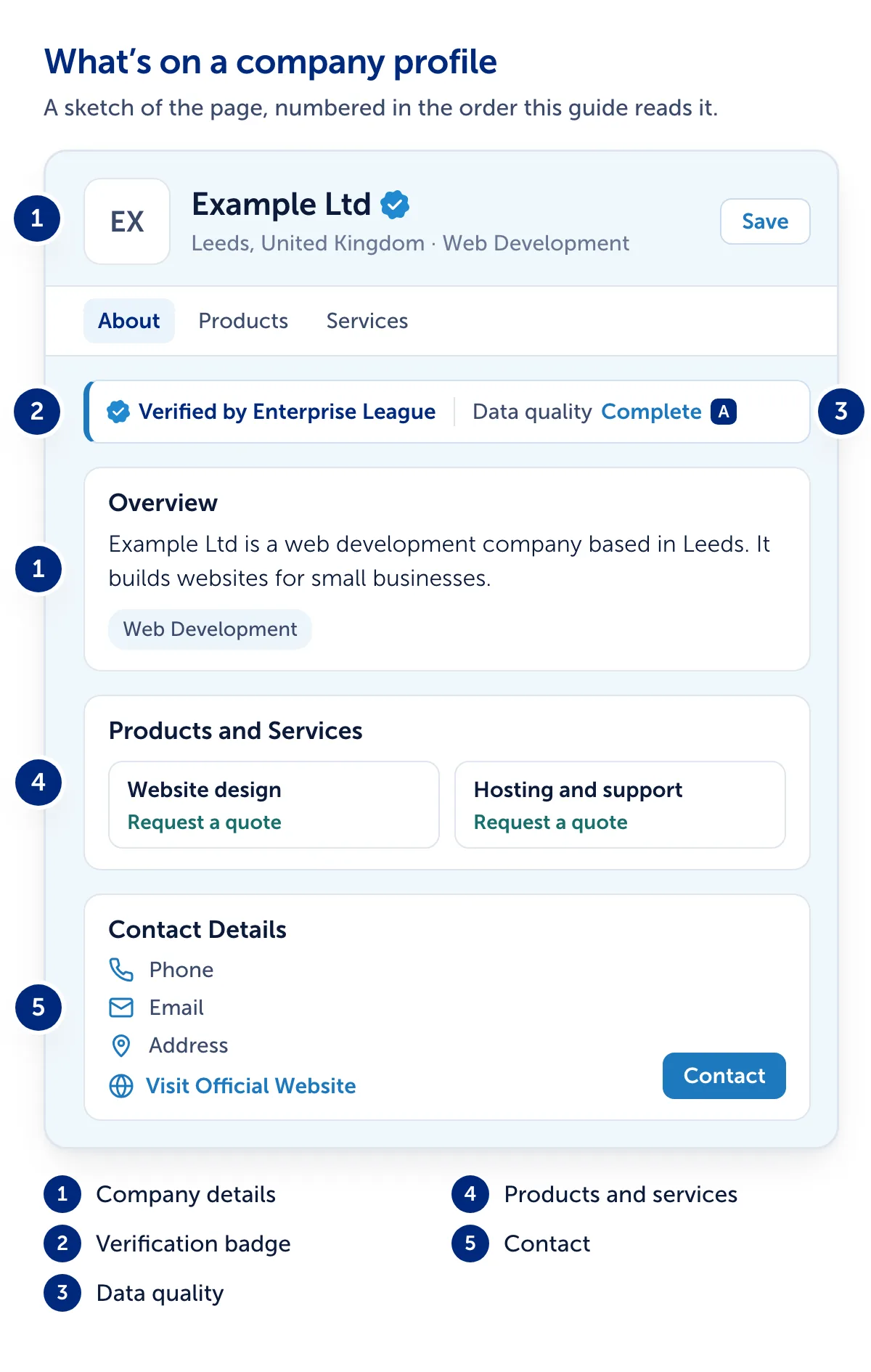
1. The company’s details
The page opens with the name, location and industry, then a summary, the Overview and categories. Contact Details can add a founder, year founded, company type and employees.
- What it tells youWho the company says it is. If the page shows “We built this page from public sources” or “Claim this profile”, nobody from the company has claimed it or checked these details. On a claimed profile, the company manages them.
- What it doesn’t tell youWhether the company is registered, still trading, or the size it says.
- Check it yourselfFind the company in its official register, such as Companies House in the UK, and compare the name, address and type.
2. The verification badge
Some profiles show a tick beside the name and “Verified by Enterprise League”.
- What it tells youA company earns the badge for free. The owner shows the company exists, with a registry record or a document, and that they work there, with a code sent to a company email address or a document. A person reads every case.
- What it doesn’t tell youIt is not a rating, and says nothing about the quality of the work or the finances. On a profile nobody has claimed yet, a person on our team checked the company’s details by hand when we added it to the directory.
- Check it yourselfDetails change, so before a large order compare the name and address with the official register.
3. Data quality
Next to the badge, “Data quality” shows “Complete” with a grade, or “Partial”.
- What it tells youOur own rating of how complete the contact details are and how long ago they were last updated.
- What it doesn’t tell youWhether the details are right. Nobody confirms them for this grade, and “Complete” can appear with no phone number or email address listed.
- Check it yourselfTest the contact details, as described below.
4. What the company offers
Products and Services list what the company sells, with a price or “Request a quote”. The company writes them, or, on an unclaimed profile, they come from public sources.
- What it tells youWhat the company says it sells.
- What it doesn’t tell youWe do not test products or confirm prices, stock or delivery times.
- Check it yourselfGet a written quote and agree the terms before you pay. To compare suppliers, browse web development companies in the United Kingdom.
5. How to contact the company
Contact Details can show a phone number, email and address. “Visit Official Website” opens the company’s site, a Locations map shows any address we hold, and the Contact button lets you message the company without an account.
- What it tells youThe ways to reach the company that we hold.
- What it doesn’t tell youWhether that number, inbox or address still reaches the company.
- Check it yourselfCall the number listed on the company’s own website, and check the email address uses the website’s domain.
Each field at a glance
| Field | Source | How to check it |
|---|---|---|
| Name, location, industry | Public sources, or the company once claimed | The official register |
| Founded, type, employees, founder | Public sources, or the company | The register; the company’s website |
| Verification badge | Enterprise League | Ask the company for its registration number and look it up |
| Data quality | Enterprise League’s own grade | Test the contact details |
| Products and services | The company, or public sources | A written quote |
| Phone, email, address, website | Public sources, or the company | The company’s own website |
Something wrong?
If you have an Enterprise League account:
- Sign in and open the profile.
- Select the three-dot menu beside the tabs, and choose Report Profile.
- Pick a reason, such as “It’s spam or a scam”.
- Select Confirm.
Reporting needs an account. Without one, email info@enterpriseleague.com with the profile link and what is wrong.
If it is your company’s page, select Claim Profile to manage it. Where the page shows “Remove this page”, you can ask us to take it down without an account.
Try these checks on a real profile
Find a company in the Enterprise League business directory, open its profile and work through the six parts above. The directory is free to browse.